—
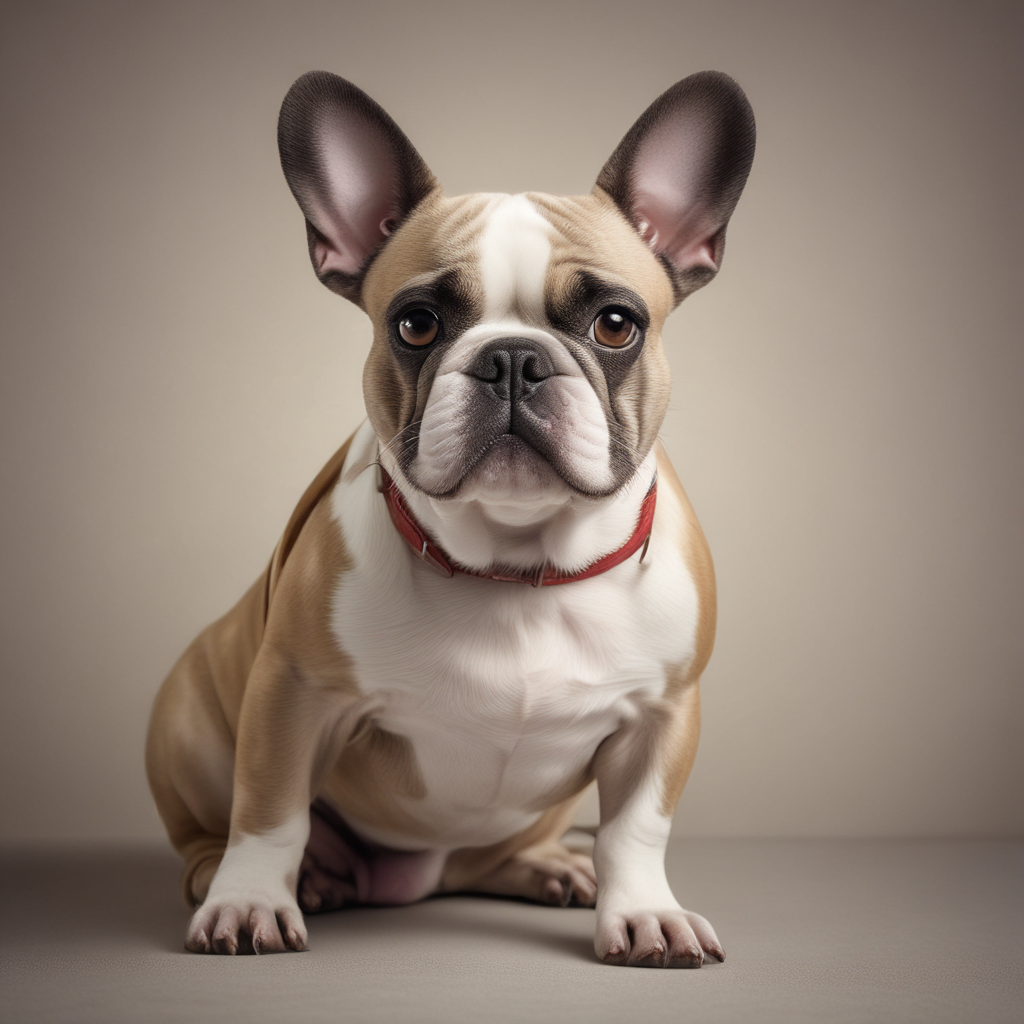
Why Your Pet Deserves Better Photos (And How AI Can Help)
You love your pet. You take dozens of photos every week. But when you look back at your camera roll, most shots are blurry, poorly lit, or just… ordinary.
Professional pet photography costs $200-500 per session. You need to book weeks in advance, stress your pet with a stranger and studio lights, and hope they cooperate long enough to get a few good shots.
There’s a better way: AI-powered pet portrait generators can transform your existing phone photos into professional-quality portraits in under 30 seconds. No studio. No stress. No expensive photographer.
This guide shows you exactly how to do it.
—
What You’ll Need
- 1-3 clear photos of your pet (phone photos work fine)
- 5 minutes of your time
- An AI pet portrait generator (we’ll use PixPawAI as the example)
That’s it. No professional camera. No editing skills. No design experience.
—
Step 1: Choose the Right Source Photos
Not all pet photos work equally well with AI. Here’s what makes a good source photo:
✅ Good Source Photos
- Clear face visibility — eyes, nose, and mouth are visible
- Good lighting — natural light or bright indoor lighting
- Sharp focus — not blurry or motion-blurred
- Neutral background — plain walls, grass, or simple settings work best
- Pet is looking at camera (optional but helps)
❌ Avoid These
- Blurry or out-of-focus shots
- Extreme close-ups (just the nose)
- Photos where your pet is mostly hidden
- Very dark or backlit photos
- Group photos with multiple pets (unless you want all of them in the portrait)
Pro tip: You don’t need a perfect photo. AI can work with casual snapshots — just make sure your pet’s face is clear and well-lit.
Real Example: Before vs After
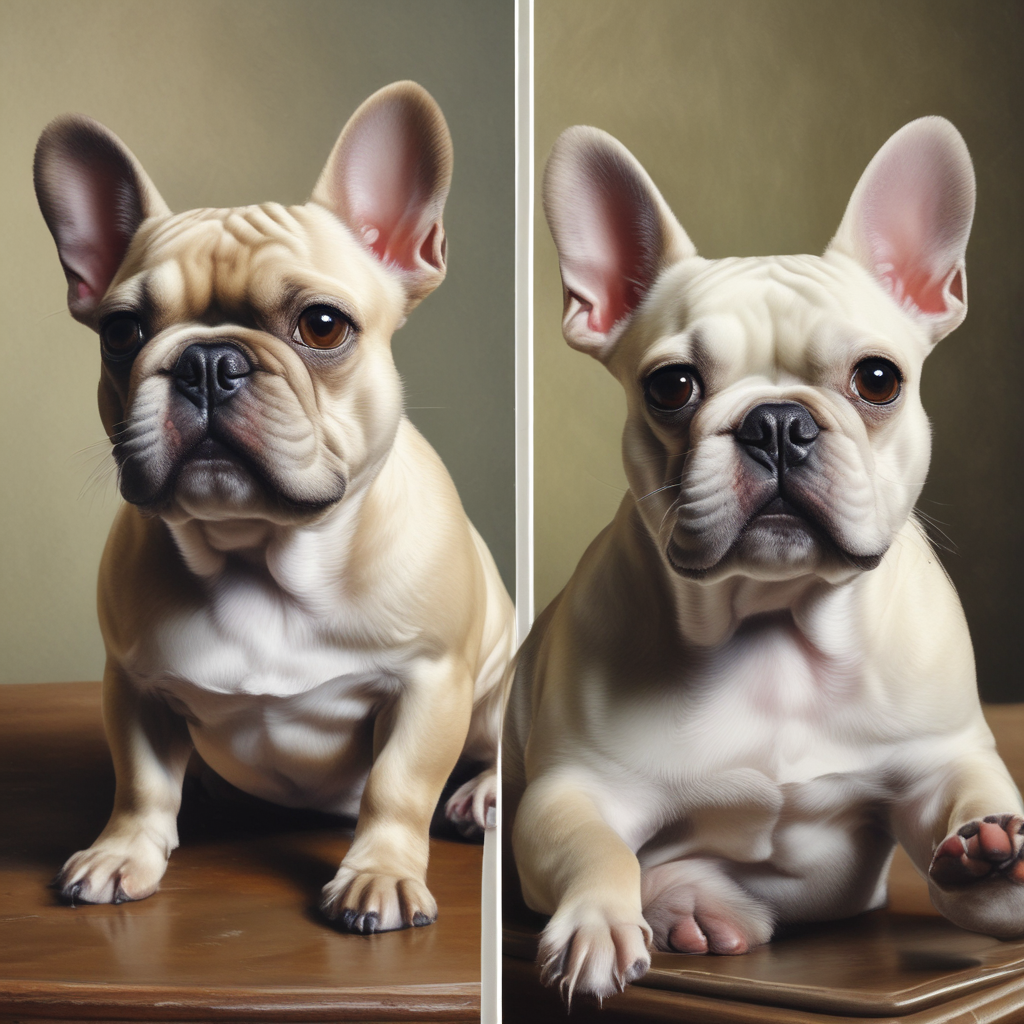
The left side shows a typical phone photo — decent but not frame-worthy. The right side shows the same dog transformed into a professional portrait with artistic styling and perfect lighting. Same pet, same day, zero photography skills required.
—
Step 2: Upload Your Photos to an AI Generator
For this tutorial, we’re using PixPawAI (pixpawai.com) because it’s fast, affordable, and produces high-quality results.
How to Upload:
1. Go to pixpawai.com
2. Click “Create Now” or “Try Free”
3. Create a free account (takes 30 seconds)
4. Upload 1-3 photos of your pet
– More photos = better AI understanding of your pet’s features
– But 1 good photo is enough to start
What happens next: The AI analyzes your pet’s breed, fur color, facial features, and unique characteristics. This takes about 10-15 seconds.
—
Step 3: Choose Your Portrait Style
This is where the magic happens. AI generators offer dozens of artistic styles — from realistic to whimsical.
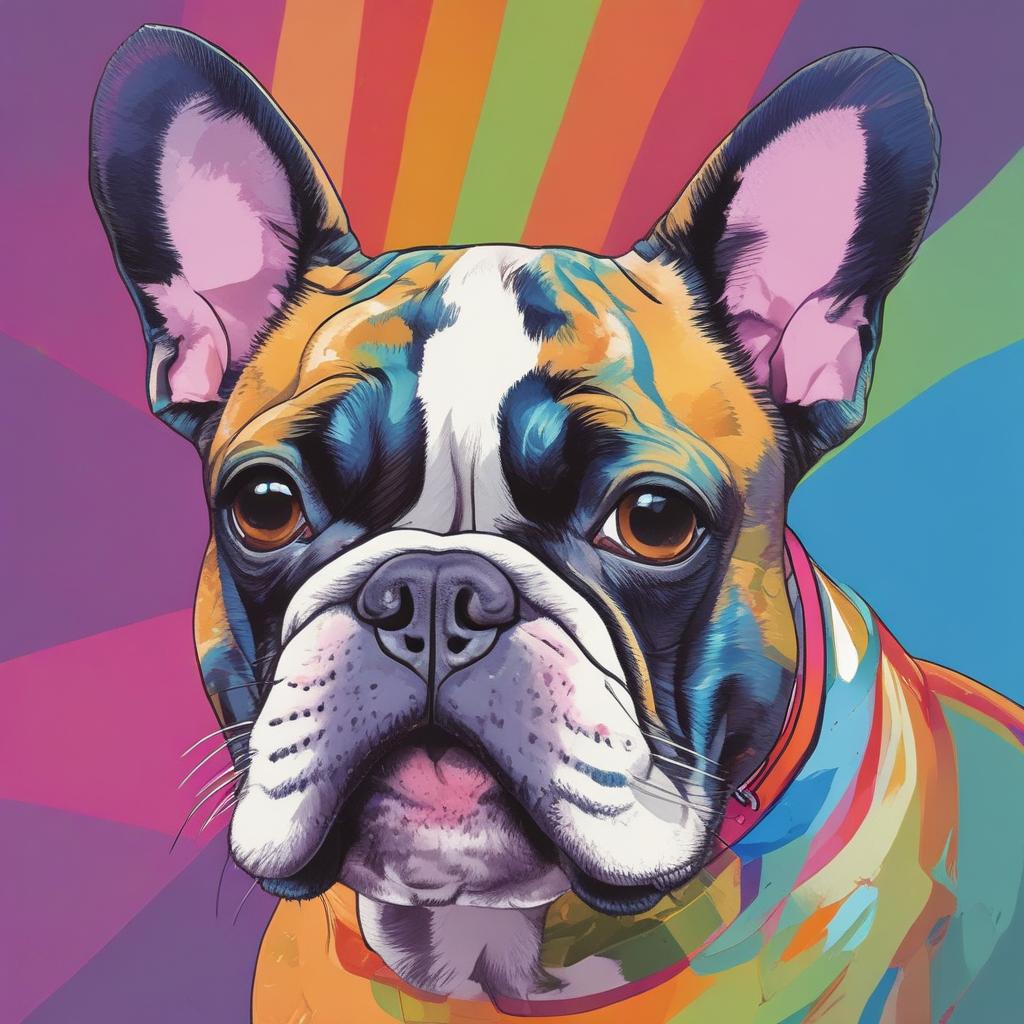
Popular Style Categories:
1. Realistic & Professional
- Classic portrait (neutral background, professional lighting)
- Studio portrait (like a professional photographer took it)
- Best for: LinkedIn profiles (yes, some people do this), professional use, realistic gifts
2. Artistic & Stylized
- Oil painting
- Watercolor
- Pop art (Warhol-style)
- Best for: home decor, unique gifts, Instagram posts
3. Themed & Fun
- Royal portrait (your pet as royalty in Renaissance clothing)
- Astronaut, superhero, or fantasy themes
- Holiday themes (Christmas sweater, Halloween costume)
- Best for: fun gifts, social media, conversation starters
4. Memorial & Sentimental
- Soft watercolor with gentle backgrounds
- Black and white classic portraits
- Rainbow bridge themes
- Best for: pet loss memorials, tribute gifts
Pro tip: If you’re unsure, start with a classic or realistic style. You can always generate more portraits in different styles later.
—
Step 4: Generate Your Portrait
Once you’ve selected a style:
1. Click “Generate”
2. Wait 20-30 seconds while the AI creates your portrait
3. Preview the result
What you’ll see: A professional-quality portrait of your pet in your chosen style. The AI preserves your pet’s unique features (eye color, fur patterns, facial expressions) while applying the artistic style.
If You’re Not Happy With the Result:
- Try a different style
- Upload a clearer source photo
- Adjust the style intensity (if the tool offers this option)
Most AI generators let you generate multiple versions, so don’t settle for the first one if it’s not quite right.
—
Step 5: Download and Use Your Portrait
Once you’re happy with your portrait:
1. Remove the watermark (if using free credits, you’ll need to purchase credits)
2. Download in high resolution (usually 2048×2048 or higher)
3. Save to your device
Pricing Reality Check:
- PixPawAI: $4.99 for 15 credits (15 portraits) = $0.33 per portrait
- Professional photographer: $200-500 per session
- Savings: 600-1500x cheaper
You can generate portraits for your entire pet family for less than the cost of one latte.
—
Real-World Use Cases: What to Do With Your AI Pet Portraits
1. Gifts That Actually Mean Something
- Print on canvas for a pet owner’s birthday
- Create a photo book of their pet in different styles
- Make custom greeting cards
- Perfect for: pet parents, grandparents who love your pet, friends who just adopted
2. Pet Memorial Tributes
When a beloved pet passes, AI portraits offer a beautiful way to honor their memory:
- Soft watercolor portraits for memorial frames
- Rainbow bridge themed portraits
- Black and white classic portraits for tribute posts
Why this matters: Professional memorial portraits from photos cost $100-300. AI makes this accessible to everyone.
3. Home Decor
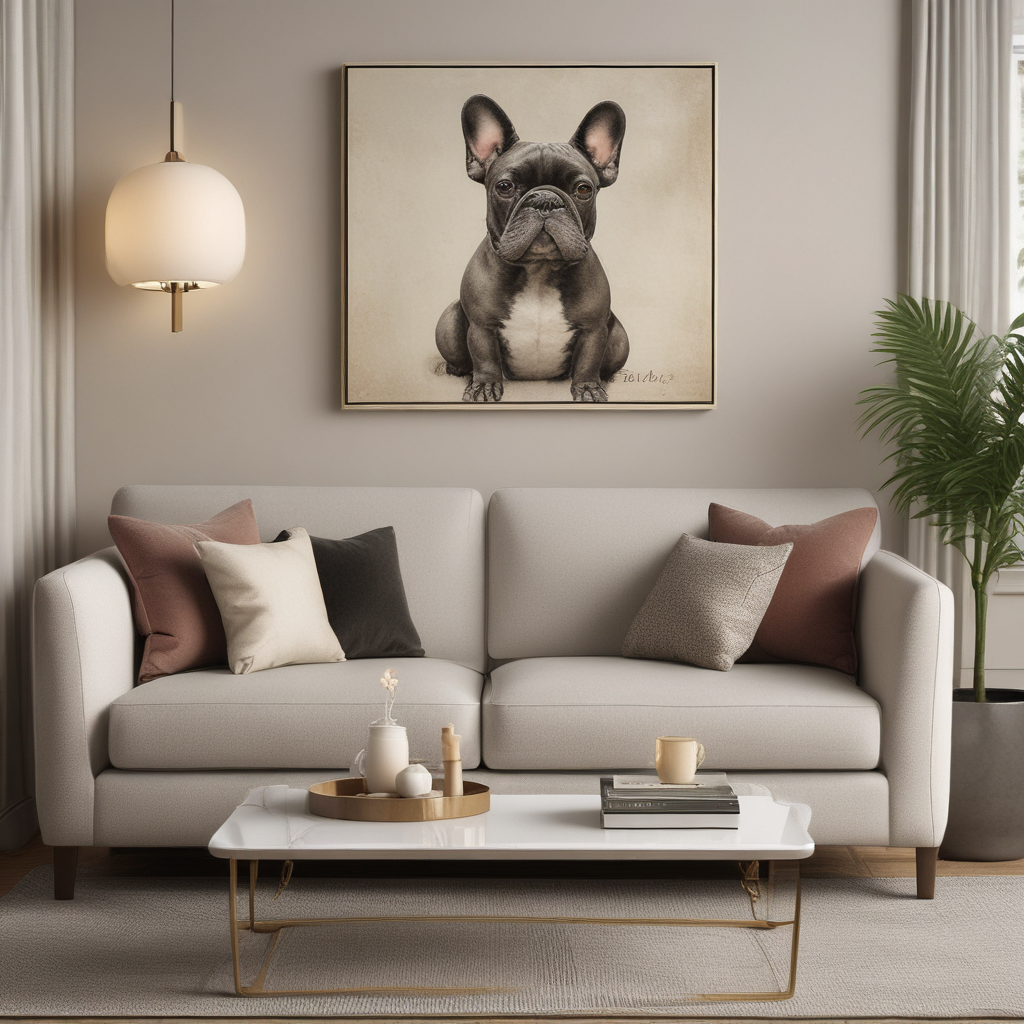
Transform your space with custom pet art:
- Canvas prints for your living room
- Gallery wall of your pet in different artistic styles
- Matching portraits if you have multiple pets
Interior design tip: Large canvas prints (24×36 or bigger) work best above sofas or in entryways. Smaller prints (8×10 to 16×20) are perfect for gallery walls or office desks.
4. Social Media Content
- Instagram posts that stand out
- Profile pictures
- Holiday cards
- Pet birthday announcements
5. Business Use (Yes, Really)
- Pet business branding (groomers, vets, pet sitters)
- Pet product marketing
- Pet blog featured images
- Pet influencer content
—
Tips for Best Results
Do:
✅ Use recent photos (your pet’s current appearance)
✅ Upload multiple angles if available
✅ Experiment with different styles
✅ Save your favorites for different uses
✅ Try batch generation if you have multiple pets
Don’t:
❌ Use photos from 5 years ago (unless you want a memorial portrait)
❌ Expect perfection on the first try
❌ Use extremely low-resolution photos
❌ Give up after one attempt
❌ Forget to download high-res versions before your credits expire
—
Common Mistakes to Avoid
Mistake #1: Using Only One Photo
More photos = better AI understanding. Upload 2-3 different angles if possible.
Mistake #2: Choosing the Wrong Style for the Occasion
Royal portraits are fun, but not appropriate for pet memorials. Match the style to your intended use.
Mistake #3: Not Checking Resolution Before Printing
Always download the highest resolution available. Low-res portraits look pixelated when printed large.
Mistake #4: Ignoring Lighting in Source Photos
Dark, shadowy photos produce dark portraits. Use well-lit source images for best results.
—
Frequently Asked Questions
Q: How long does it take to generate a portrait?
A: 20-30 seconds per portrait. Much faster than waiting weeks for a professional photographer.
Q: Can I use AI portraits commercially?
A: Check the specific tool’s terms of service. Most allow personal and commercial use, but some restrict resale of the portraits themselves.
Q: What if the AI gets my pet’s features wrong?
A: Try uploading a clearer photo or a different angle. AI works best with clear, well-lit photos where your pet’s face is fully visible.
Q: Can I generate portraits of multiple pets together?
A: Some tools support this. Upload a photo with both pets visible, or generate individual portraits and combine them in a photo editor.
Q: Is this better than hiring a professional photographer?
A: Different purposes. Professional photographers capture real moments and emotions. AI portraits are artistic interpretations — perfect for gifts, decor, and creative projects at a fraction of the cost.
Q: What’s the best style for a pet memorial?
A: Soft watercolor, black and white classic, or gentle realistic styles work best. Avoid overly whimsical or themed styles for memorial purposes.
Q: Can I print these portraits?
A: Yes! Download in high resolution (2048×2048 or higher) and print on canvas, photo paper, or use a print-on-demand service like Printful or Printify.
Q: How many portraits should I generate?
A: Start with 3-5 in different styles to see what you like. You can always generate more later.
Q: Do I need to edit the portraits after generation?
A: Usually no. AI portraits are ready to use. But you can crop, adjust brightness, or add text in any photo editor if needed.
—
Where to Print Your AI Pet Portraits
Once you’ve generated your portraits, here are the best places to print them:
For Canvas Prints:
- CanvasPop (high quality, frequent sales)
- Printful (good for bulk orders)
- Local print shops (support small business + see samples in person)
For Photo Prints:
- Shutterfly (frequent coupons)
- Mpix (professional quality)
- Costco Photo Center (budget-friendly)
For Custom Products:
- Printify (mugs, phone cases, tote bags)
- Zazzle (greeting cards, calendars)
- Redbubble (stickers, apparel)
Pro tip: Order a small test print (8×10) before committing to a large canvas. This lets you verify color accuracy and quality.
—
Final Thoughts: Why AI Pet Portraits Are Worth It
Professional pet photography is expensive and stressful. Your phone photos are casual but not frame-worthy. AI pet portraits bridge the gap:
- Affordable: $0.33-$1 per portrait vs $200-500 for a photo session
- Fast: 30 seconds vs weeks of booking and waiting
- Stress-free: No studio, no stranger, no stressed pet
- Versatile: Generate unlimited styles from the same photo
- Accessible: Anyone can do this, no design skills needed
- Repeatable: Generate new portraits as your pet grows or for different occasions
Whether you’re creating a gift, honoring a pet’s memory, or just want a beautiful portrait for your wall, AI makes professional-quality pet portraits accessible to everyone.
The technology has reached a point where the results are indistinguishable from commissioned art — at a fraction of the price and time investment.
Ready to try it? Head to PixPawAI and transform your pet photos in under a minute. Start with 2 free credits (no credit card required) and see the magic for yourself.
—
Next Steps
1. Gather 2-3 clear photos of your pet (check your camera roll now)
2. Visit PixPawAI.com and create a free account
3. Upload your photos and choose a style
4. Generate your first portrait (takes 30 seconds)
5. Download and share your creation
If you love the results, consider:
- Generating portraits in multiple styles
- Printing a canvas for your home
- Creating custom gifts for fellow pet lovers
- Sharing on social media (tag @pixpawai for a feature!)
—
About PixPawAI: PixPawAI is an AI-powered pet portrait generator that transforms your pet photos into professional-quality portraits in 30 seconds. With 50+ artistic styles and affordable pricing, it’s the easiest way to create beautiful pet portraits without hiring a photographer.
Related Articles:
- Best AI Pet Portrait Generators 2026
- 15 Meaningful Pet Loss Gift Ideas
- How to Create a Beautiful Pet Memorial Portrait
—
*Last updated: March 2026 | Word count: ~2100 words*
Leave a Reply